Logic
Give a scene its rules without writing code: when something happens, do something. A blueprint graph is a chain of nodes that runs when its event fires.
Graphs are files in the project, logic/<name>.graph.json. An entity runs one through its
Blueprint component. Studio has the blueprint runtime built in, so Play runs your graphs on
desktop, web and Android, and an exported game runs them too.
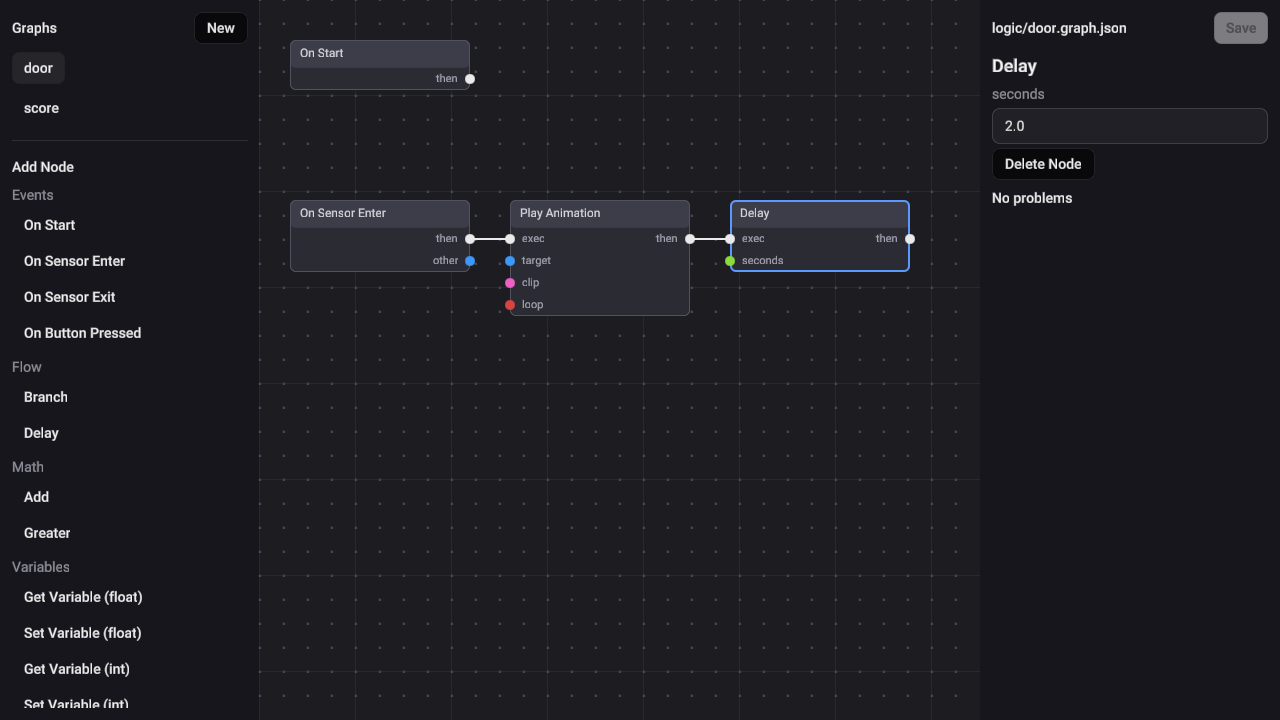
Make a graph
- Switch to the Logic view.
- In the sidebar, press New. Studio starts a graph under
logic/. - Add nodes from the Add Node list under the graphs. Drag them where you want them on the canvas.
- Wire them: drag from a node's output to another node's input. The white
thenandexecports set the order things happen in; the coloured ports carry values. - Click a node to edit its fields in the inspector on the right.
- Press Save (or Ctrl+S, Cmd+S on a Mac) to write the file.
Pan and zoom the canvas to move around a large graph. Delete Node, or Del, removes the selected node.
While the Logic view is showing, Undo, Redo and Delete act on the graph rather than the scene. A drag, a moved wire or typing into one field is each one undo step.
Problems
Under the node's fields, the inspector lists anything the runtime would refuse, such as a variable node with no name or a loop with no wait in it, and outlines the node it's on. No problems means the graph will run.
Run a graph on an entity
- Switch to the Scene view and select the entity the graph belongs to.
- In the inspector, use Add Component › Blueprint.
- Pick the graph in its Graph menu.
Press Play in the Game view to try it. If you save the graph in Logic while Play is running, the new version takes over in the running game and keeps its variables.
When you save a scene that uses blueprints, Studio notes in awake.project.json that the game
needs them, so the exported game runs them too.
Events
A graph starts from an event node:
| Node | Fires when |
|---|---|
| On Start | The scene starts playing. |
| On Button Pressed | A Button in the game UI is pressed. Its name field is the Button entity's name, such as PlayButton. |
| On Sensor Enter | Something enters this entity's sensor. Its other output is what entered. |
| On Sensor Exit | Something leaves this entity's sensor. |
A sensor is a Physics Body with Sensor switched on in the inspector. It reports what enters it and stops nothing, so the character walks into it. The Starter's coins are sensors.
Doing things
| Node | What it does |
|---|---|
| Load Scene | Switches the game to another scene, named by its file, such as scenes/level.scene.json. |
| Set Visible | Shows or hides a game UI element, found by its name. |
| Set Text | Changes the words of a Text or Button element. |
| Destroy | Removes an entity from the game. With nothing wired to its target, it removes the blueprint's own entity. |
| Find By Name | Finds an entity by its name, to hand to another node such as Destroy. |
| Play Animation | Plays one of a model's animation clips. |
| Branch | Goes one way or the other on a true-or-false value. |
| Delay | Waits a number of seconds before going on. |
| Add, Greater | Add two numbers, or compare them. |
Destroy removes the entity's children with it, so destroying a coin also removes the glow parented under it.
Variables
Get Variable and Set Variable read and write a named value the graph keeps while the game runs. Each comes in a type: a number (float or int), text (string), and so on. Give the variable its name in the node's name field.
An entity's Blueprint component can give a graph's variables their starting values, so one graph
can serve many entities. Each of the Starter's coins runs the same coin.graph.json, and its
Blueprint component sets slot (the HUD slot to light) to its own slot's name.
Not in the inspector yet
The inspector doesn't edit a Blueprint component's starting variables yet. They're kept in the
scene file, under the component's variables, and Studio keeps them when you edit anything
else.
Example: a menu's Play button
The Starter's logic/menu.graph.json is two nodes:
- On Button Pressed, with name
PlayButton. - Load Scene, with scene
scenes/level.scene.json.
Its then output is wired to Load Scene's exec input. The menu scene's Menu Logic entity runs
it through its Blueprint component. Pressing the button in Play loads the level; see
Play for how Load Scene behaves inside Studio.
Example: collecting a coin
The Starter's logic/coin.graph.json runs on each coin:
- On Sensor Enter fires when the character walks into the coin.
- Set Visible, set to visible, shows the HUD slot whose name the
slotvariable holds. - Destroy, with no target, removes the coin itself, and its glow with it.