Get started
Open Studio, make a project from a template, and find your way around the Game UI, Logic & Shader Starter.
Open Studio
Go to studio.awakekt.com and choose Web, or open studio.awakekt.com/web directly. Studio runs in the browser and needs one with WebGPU, such as a current Chrome or Edge.
On studio.awakekt.com, choose Download for Mac. It needs an Apple silicon Mac with macOS 14 or later.
The app isn't notarized yet. If macOS blocks it the first time you open it, go to System Settings › Privacy & Security and choose Open Anyway.
These aren't available to download yet. Use the web version for now.
Create a project
When Studio starts, it shows New Project: a card for each template. Click a card to start a project from it. Open Project... opens a project you already have, and Blank Studio goes straight to the editor with nothing open.
Where the new project lives depends on where Studio runs:
- Desktop: Studio asks where to put it and makes a folder of its own there. It never writes into a folder that already holds files.
- Android: it gets a folder in the app's projects folder.
- Web: it opens in the browser. To keep a copy on your computer, use File › Export Project (.zip)....
Once you're in the editor, File › New Project from Template... opens the same templates in a dialog: pick one and choose Create Project from Template. Templates published on Awake Cloud show there too, marked Awake Cloud; creating one downloads it into a new project of your own.
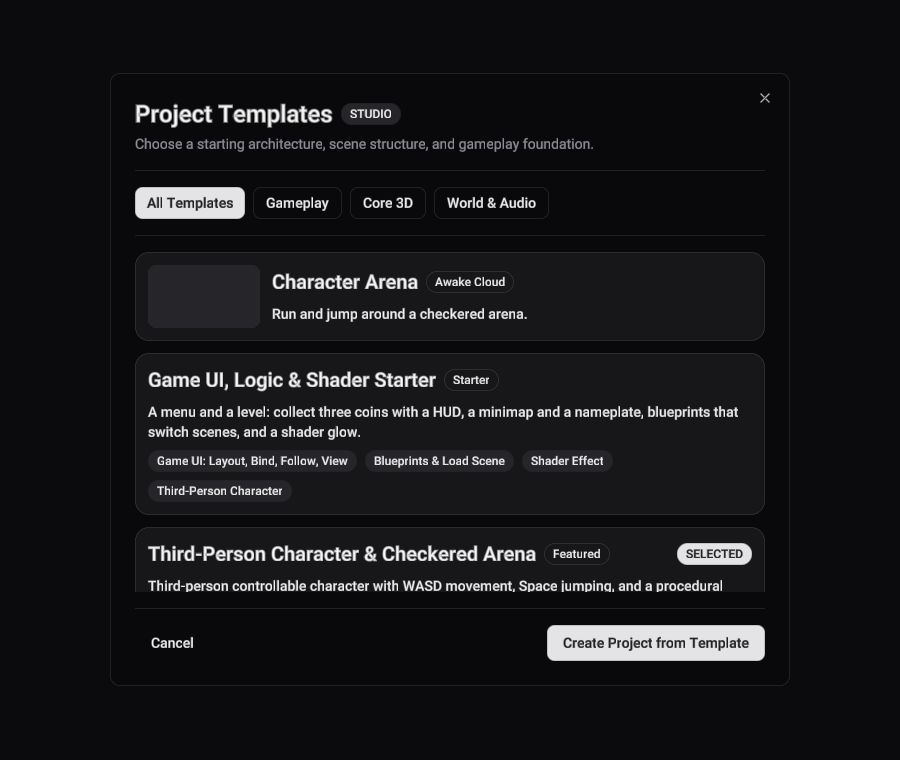
Tour the Game UI, Logic & Shader Starter
This template is a small game that uses Studio's Game UI, Logic and Shader views together: a menu, and a level where you collect three coins. Create a project from it, then:
- Switch to the Game view and press Play. The game starts on the menu.
- Press the menu's Play button to load the level.
- Move with W A S D (or the on-screen stick on a touch screen) and jump with Space. Walk into each coin to collect it.
- Press Stop to go back to editing.
Where everything is
Scenes. scenes/menu.scene.json is the scene the game starts on, and scenes/level.scene.json
is the level. Switch between them from the Scene menu.
Game UI. In the Game view you see a scene's UI the way the player does. Click an element to select it, drag it to move it, or drag a handle to resize it. In the level:
- Coins is a Panel whose Layout puts its three slots in a row.
- Time Label and Time Bar use Bind to show the sun's time of day as it changes.
- Nameplate follows the character, a little above its head.
- Minimap is a View of what the Overhead camera sees.
See Game UI for how each of these is set up.
Logic. The Logic view edits the blueprint graphs in logic/:
menu.graph.json: pressing the menu's Play button loads the level (Load Scene).coin.graph.json: when the character enters a coin's sensor, the coin lights its slot in the HUD, then removes itself, glow and all. Each coin's Blueprint component names its slot in itsslotvariable, so one graph serves all three coins.back.graph.json: the level's Menu button goes back to the menu.
See Logic.
Shader. The Shader view edits shaders/coin-glow.shader.json, the pulsing glow under each
coin. Each coin's glow child, such as Coin 1 Glow, draws it with a Shader Effect component. See
Shaders.
Your account
Sign in from the account menu at the top right. The first time, choose Finish setting up your
account: the site asks for a display name, which credits your games, and a username, whose page
studio.awakekt.com/@<username> lists them. Back in Studio, the menu shows both; Your profile
opens that page, and Account settings changes either. A game you list in Explore links to
studio.awakekt.com/@<username>/<game>. Help › Browse games opens Explore.
Build outside Studio with a Maven token
Studio signs its own builds in to Awake Cloud's Maven repository, where plugins' runtimes are
published. For your own Gradle builds and CI, sign in, open the account menu at the top right and
choose Maven token... › Create token. Copy the token, or the ~/.gradle/gradle.properties lines
and CI variables shown with it, straight away: it's shown only once. Revoke a token there when you no
longer need it.